Vileda website relaunch
Editor's Handbook
How content for the new Vileda website is created and maintained in Contentful. Part 1 is the content model reference: every content type in the project, field by field.
1 About this handbook
This handbook is written for editors: people who create pages, place modules and write copy – not for developers. Later parts will cover day-to-day workflows such as creating a page, working with media, translation and the publishing process.
1.1 Source and status
The field tables were read directly from the Contentful management API, not from a design document. They therefore reflect the system as it actually is at the date below. The descriptive text and the editorial notes come from the CS stories in Jira that specify each component; every issue key is a link. Where story and implementation disagree, the tables follow the implementation.
- Space ID
- l95snmxc3m2t
- Environment
- master
- Content types
- 52 in total: 7 page types, 29 components, 3 commerce components, 2 custom components, 9 base elements, 2 technical content types – plus 3 custom apps (Media App, CLAI App, Deep Clone App) documented as step-by-step guides, because they are apps rather than content types
- Languages (locales)
- 8 – English (en, default), German (de), French (fr), Spanish (es), Italian (it), Czech (cs), Slovak (sk), Greek (el). Every language except English falls back to English where a field has no value of its own.
- Specifications
- Jira project CS at fhcshybris.atlassian.net, mainly under epic CS-51 (Content Management – Global Components)
- Designs
- Vileda Playbook – Web V01 and V02 in Figma, linked per component
- Creation date
- 25 September 2026 (updated 23 October 2026 to the current master environment)
Please note
Every entry exists in all eight languages, and the website decides which of them a market shows. A localisable field (Loc. = Yes) can hold a separate value per language; where a language has no value, the English one is shown. The market is not a language: it is set with the Market field, and each market works on its own copy of the page (see the Deep Clone App).
1.2 How to read the field tables
Every content type follows the same pattern: a line of identifiers, a short description of what the component is and where it is used, the field table, and – where the specification provides them – editorial notes and design references.
- Specification
- The CS stories in Jira that specify this component, with their status. Every issue key is a link.
- Design
- Direct links into the Vileda Playbook in Figma, to the frame that shows this component.
- Editorial notes
- Practical guidance from the specification: what to choose, what to keep short, and what the system decides for you rather than letting you configure it.
- Field
- The field label as it appears in the Contentful editor.
- Type
- The kind of field. See the overview in chapter 2.3.
- Req.
- Yes means the entry cannot be published while the field is empty.
- Loc.
- Yes means the field can hold a different value per language. Without a value of its own, a language shows the English value.
- Rules and allowed values
- Validations configured in the model: fixed value lists, length limits, item counts, and which content types a reference field accepts.
- Notes for editors
- What belongs in the field and what to watch out for.
2 How a Vileda page is put together
2.1 The three systems behind a page
A page on the new Vileda site is not served by one system alone. Three systems work together, and knowing which one owns which piece of content saves a lot of searching:
- Contentful (this handbook) holds all editorial content: pages, modules, copy, navigation, campaign material.
- SAP Commerce Cloud holds the commercial data: products, prices, availability, categories, cart, checkout and the customer account.
- Celum (and Ignite for video) is the digital asset management system. Images and videos are selected from there through a field app inside Contentful rather than being uploaded into Contentful directly.
As a rule of thumb: if you cannot find a field for something in Contentful – a price, a product name, a stock status – it is owned by SAP and cannot be changed here.
2.2 The page structure
Contentful separates the page (its address and frame) from the page body (its content). Every page follows the same four-level pattern:
- 1. Page
- The only content type that creates a URL. Holds the slug, the breadcrumb trail and the references to header and footer. It does not hold any body content itself.
- 2. Page body
- One of the typed bodies – Homepage, Content Page, Article Page, Product Detail Page, Product Listing Page or Commercial Page – referenced from the Page's Content field. The type you choose decides which modules are available.
- 3. Components
- The modules inside the body's component list: accordions, media, steps, card collections, link lists, embedded forms and galleries. They are rendered top to bottom in the order you arrange them, so the order of that list is the order of the page.
- 4. Base elements
- The small reusable pieces inside the components: links, buttons, text blocks, images, videos, documents.
What this means in practice
Creating a new page is always two entries: a Page entry and a page body entry. Create the body first, then the Page that points to it, or create the Page and add the body from the Content field.
Reuse happens downwards. The same Link, Image or Accordion entry can be referenced from many places – and changing it changes all of them. Before editing a shared entry, check where it is used (Contentful shows this in the “Links to” information on the entry).
2.3 Field types you will meet
- Short text (Symbol)
- A single line of text, up to 256 characters. Used for labels, titles and identifiers.
- Long text (Text)
- Several lines of plain text without formatting.
- Rich text
- Formatted copy. Which formatting is available is configured per field and is listed in the rules column.
- Reference (entry)
- A pointer to one other entry. The rules column names which content types are accepted.
- List of references
- An ordered list of pointers to other entries. The order in the list is the display order on the page.
- List of short text values
- Several single-line values in one field, entered one per line.
- Reference (asset)
- A pointer to a file uploaded into Contentful, as opposed to a Celum asset chosen through the Media app.
- Boolean
- A yes/no switch.
- Integer
- A whole number.
- JSON object (app)
- A field whose value is produced by an embedded app – Market, Celum media, Ignite video, Flowbox or HubSpot. Always use the app interface; never type into the raw JSON.
2.4 Conventions in this space
- Content type names carry an icon prefix: 📄 for page types, 🧩 for components, ⚙️ for base elements and 🛒 for commerce-specific components. The chapters of this reference follow exactly that grouping.
- Almost every content type starts with a Market field. It is mandatory and is filled through the Market app, not by typing: it decides which markets the entry belongs to. An entry without a market cannot be published, so set it first, before you start writing.
- Many modules carry an Anchor, an Anchor Label and an Anchor Icon. Fill them only when the module should be reachable through an anchor navigation on that page; leave them empty otherwise.
- Almost every content type starts with an Internal Name. It is never shown on the website; it is what you and your colleagues see in entry lists, in search results and in reference pickers. A disciplined naming pattern – for example “PLP | Mops | Highlight Card” – is the single most effective thing an editorial team can do to keep a Contentful space usable. There are exceptions: the Card Collection types use an Internal Title instead, List Block Item is identified by its Label, PDP Accordion by its Title, and CLAI Translation Request by its request id.
2.5 Markets, tags and permissions
For administrators
This section describes how markets, tags and roles work together. Only administrators work on the tag concept – creating, renaming or restructuring tags. Editors use the tags that exist.
Which market an entry belongs to is controlled with tags. Contentful cannot base a permission directly on the value of a field such as a page's market, so tags and roles together decide who may see, edit and clone which content. Some special permission cases may therefore not be possible in Contentful.
- Roles
- Admin – all markets and user management. Global Editor – all markets. Local Editor – only the assigned markets; these roles are planned as market clusters (18 clusters plus one global cluster, for example Germany, Italy, Czech & Slovakia or BeNeFr), on the assumption that every user in a cluster covers all languages of its markets.
- Market tags
- Every entry carries the tag of its market. Editors can add market tags to an entry. In the beginning, rely on the existing market tags; custom tags are possible, but the concept for them is an administrator task.
- Global tag
- A global tag is assigned automatically as part of the permission set-up. It must not be removed. Whether editors can remove tags at all is still being checked.
- Read and write
- A local editor can have write access to one market, for example Italy, and read access to others. Read access allows cloning content from those markets into Italy, but never into a market where the editor only has read access. The client has decided that all countries may read and clone content from all countries, read-only; the technical check of this is still open.
- What editors see
- An editor with one market selects only that market and sees mainly that market's components, so no market filter is needed. An editor with several markets sees the components of all of them and has to take care with entries that have the same name in every market, such as the footer.
- Finding the market
- Tags are not shown when you pick an existing entry for a reference. In the entry list, admins can add a tag column to see the market of each entry. To search by market, filter by tag; the tags have to be selected again for each search.
Not fully implemented yet: market visibility for restricted editors, and copying content between markets. Both depend on the permissions described above.
All content types
Page Types (7)
 Product Detail Page (PDP)
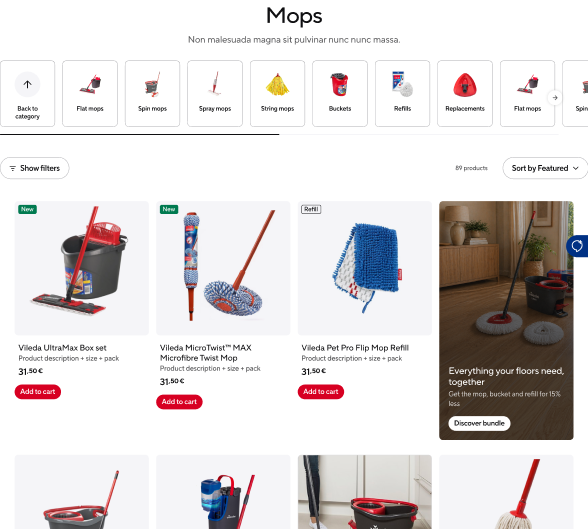 Product Listing Page (PLP)
Commercial Page
Components (29)
 Header
 Header Info Bar Item
Header Navigation Item
Header Promotion Item
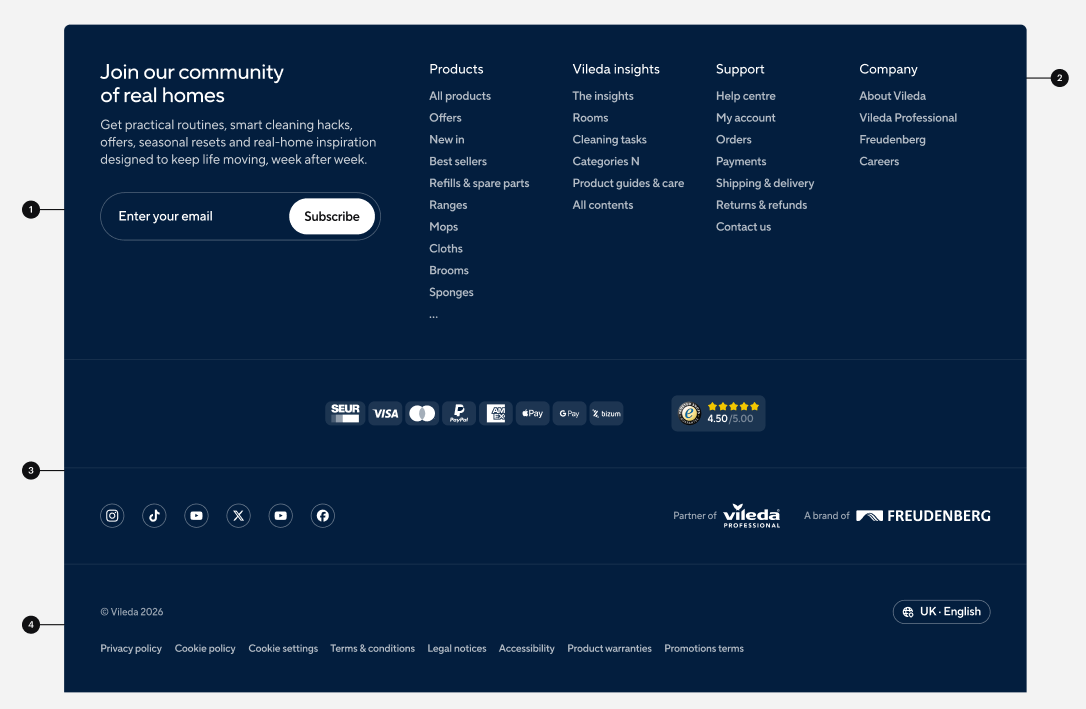 Footer
 Navigation Column
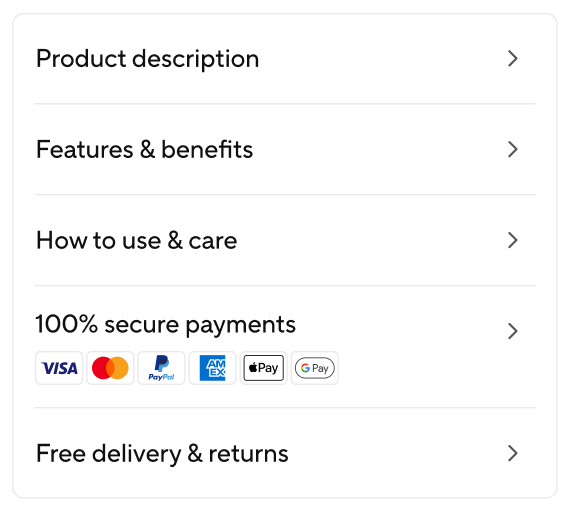
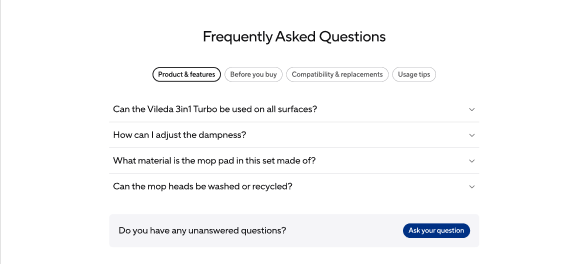 Accordion
 Item
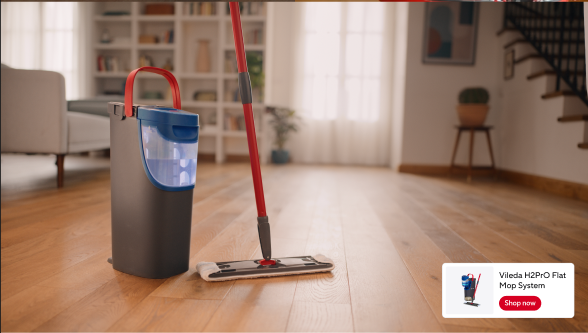 Hero
 Headline
 Card
Content Card
Product Card
Card Collection
Card Collection — Grid
Card Collection — Media Large + Stacked
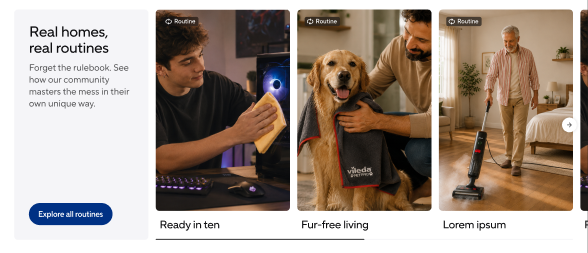 Card Collection — Fixed + Content
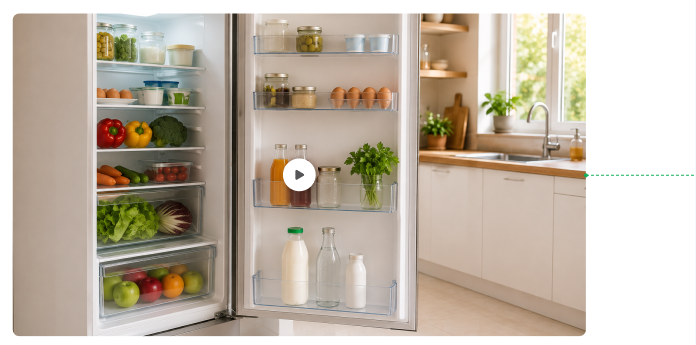 Full Size Media
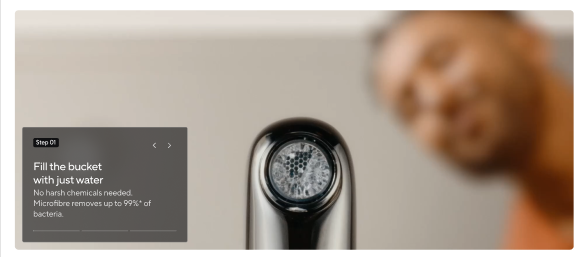 Steps
Step Item
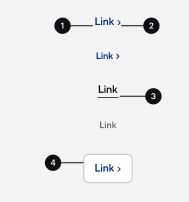
 Link List
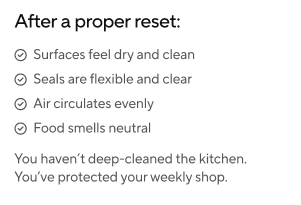 List Block
 Item
2 Column Block
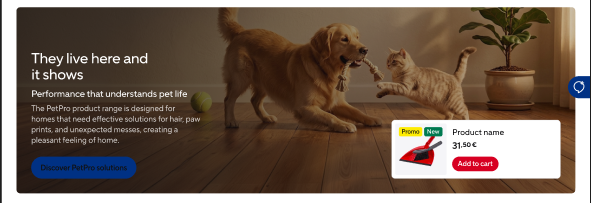 Highlight
 Highlight Block
 Quote
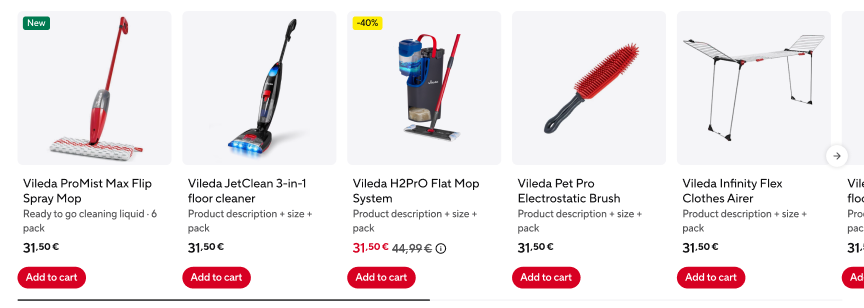 Cross-Selling
Social Link